CSCA · Your exam-day companion
CSCA Exam Day Checklist
Know what to bring and when to log in. Follow the home-based timeline or test-centre steps, from ID checks to final submission.
Start my checklist
What should you prepare for CSCA exam day?
For home-based CSCA, login opens 60 minutes before each subject. Log in no later than 30 minutes before the start.[1][5]
Original · valid through results release[6]
Printed · no written notes
Taking the exam at home
- Tested Windows computer + monitoring phone / tablet
- Private room · desk against two walls · face the wall
- Blank, erasable scratch tools
Computer-based test centre[7]
- Arrive at least 40 minutes before the start
- Passport + printed ticket + black pen
- Use the centre’s computer and scratch paper
Your home-based preparation checklist
Check each item using the exact room, devices and network you will use for the test, then tick it. Fix a failed check before marking it complete.
0 / 12 checked
Your equipment, at a glance
Complete these checks before the personal system test, using the computer, cameras and network you will use on exam day.[2]
Exam computer
- 10 / 11 · or 7 SP1 and later
- Windows
- Physical hardware
- 64-bit
- Get the latest official client from the registration system or official email.
- Test this exact computer. If it cannot run the client, arrange a compatible replacement before exam day.
Not permittedmacOS · cloud / remote desktops · Hyper-V · Windows Sandbox · WSL / WSL2 · VBS
Display & storage
- Physical display
- 1
- Screen resolution
- ≥1366 × 768
- RAM
- ≥4 GB
- Free on client partition
- ≥2 GB
- Remove privacy / anti-reflection covers.
- Install outside C: where possible — CSCA recommendation.
Front camera & audio
- Minimum camera resolution
- ≥720p
- Recommended
- 1080p
- Camera above the screen; microphone stays on.
- Test speakers + mic; desktop computers need external audio devices.
Not permittedWireless earphones
Monitoring phone / tablet
- Airplane mode
- Reconnect Wi-Fi
- Do Not Disturb
- Open monitoring page
- Scan the exam client’s QR code to open the browser-based monitoring page.
- Stable stand + power connected; close unrelated apps.
Exam connection
- Upload AND download bandwidth
- ≥20 Mbps
- Client connection speed
- ≥500 KB/s
- Pass the built-in speed test; wired broadband recommended.
- Prepare and rehearse a backup 4G hotspot connection before the test.
- Close all non-exam software and background programs.
Not permittedVPNs · proxies · network accelerators · connection-hiding / redirecting tools
Three moments to plan around
Use the start time on your admission ticket for each subject. Convert it to your local time before exam day; these offsets are for the home-based test.
Compare Beijing and local times with the CSCA exam calendar.
- −60 min
Open the client & log in
- Run system checks; use ticket number + password
- Start identity and camera checks straight away
- −30 min
Login deadline
- Already logged in
- Continue checks as instructed
- Start
Begin answering
- Finish the required checks and confirm the rules first
- Countdown ends → full screen + timer; no late entry
- 12:00Login opens
- 12:30Login deadline
- 13:00Exam starts
Example only: replace 13:00 with your ticket’s local start time. Set separate reminders for each subject and follow its login instructions.
What happens between login and the start?
Sign in
System test → ticket number + password
Verify identity
Confirm personal details → facial recognition
Connect & show
Scan QR → show passport + 360° room scan + blank scratch tools
Wait at your desk
Confirm rules → proctor checks → countdown
Make the camera view and scratch work familiar
Practise a few calculations with the permitted tools before the test. This simple rehearsal lets you find out whether the writing is readable and easy to erase.
Two views of the same workspace
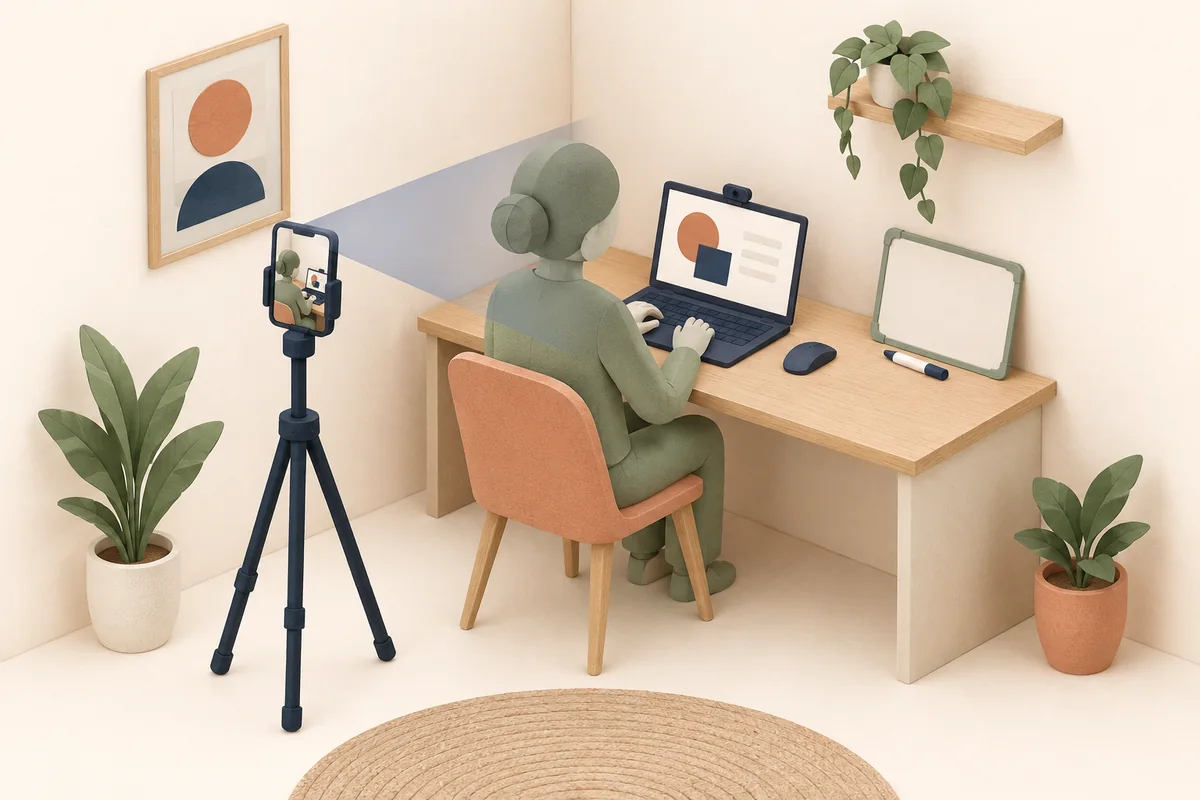
- Behind and to your side
- ~45°
- Approx. distance from you
- 1–1.5 m
- Lens slightly above shoulders[3]
- Side of face, shoulders, arms, hands and screen in view
- Check both views in the official mock; keep cameras fixed and uncovered
Front: full face + shoulders
Side-rear: side of face + upper body + hands + screen
Paper inside. Writing on the outside.
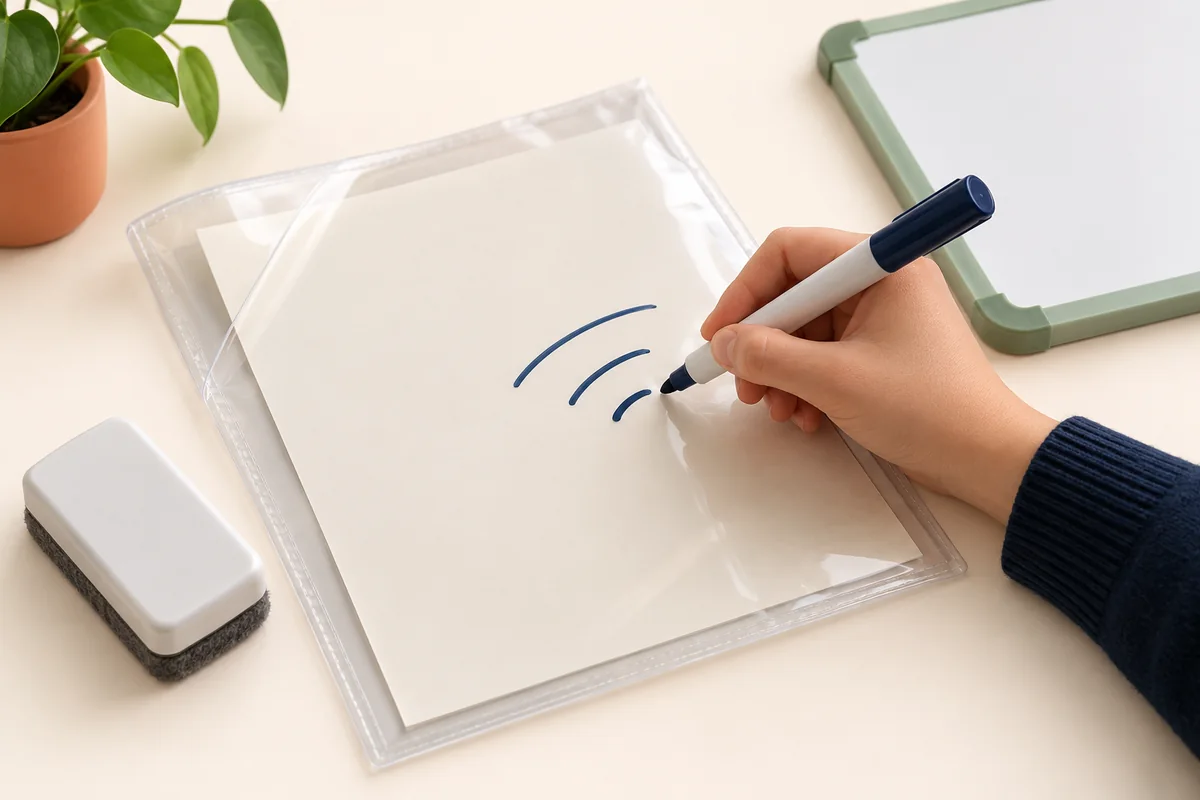
- Blank paper inside the clear sleeve[3]
- Dry-erase marker writes on the plastic
- Erase fully; show the blank surface for checks
Use an erasable surface
- Small whiteboard + erasable marker
- Or blank paper inside a clear sleeve; write on the sleeve
- Whiteboard eraser; blank tools for the pre-test check
Keep these off the desk
- Loose scratch paper, sticky notes or notebooks
- Pencils, ballpoint pens and other permanent writing tools
- Calculators, tissues, wet wipes and unapproved devices
At the end, show and erase the scratch work as the proctor instructs. Keep all test content confidential.
From the first answer to a confirmed finish[4]
While answering
- Stay seated; both cameras + microphone on.
- Click an answer; the system saves progress automatically.
- Stay in the client; no app switching, outside help or recording.
Before time runs out
- Green question numbers mean answered.
- Use the navigator to find unanswered questions.
- Review and change answers within the time; no early submission.
When time ends
- System auto-submits → wait for the successful-submission message.
- Show scratch tools → erase all writing under proctor supervision.
- Exit as instructed; keep client files until results are released.
If something goes wrong, follow this order
Main screen freezes / disconnects
- Secondary device: Call proctor
- Report the problem
- Reconnect as instructed
Keep the monitoring view open.
Both devices offline; proctor unreachable
- Restart exam device
- Log in again
- Still offline? Technical support
This recovery route applies when both devices lose contact.
Camera blocked / unstable / low battery
- Contact proctor
- Follow adjustment instructions
Keep cameras + microphone on; move the phone only as instructed.
Unwell / urgent help needed
- Contact proctor immediately
- Explain and request help
Proctor approval is required before leaving.
The home-based instructions do not promise automatic extra time. Report the issue promptly and follow the official recovery steps.[4]
Before exam day: use the technical-support meeting room during the official testing window, or contact CSCA support: [email protected][9]
At a test centre: arrive, check in, answer, leave[7]
Bring your original ordinary passport booklet, printed admission ticket and a black pen. Confirm the venue and local start time on your ticket.
- −40 min
Arrive & check in
- Present passport + printed ticket; complete ID checks.
- No entry after the exam starts.
- Before start
Check your workstation
- Passport + ticket at the top-left of the desk.
- Check screen, keyboard and mouse; log in as instructed.
- During
Use centre-issued paper
- Raise your hand for technical problems; wait for staff.
- Do not restart the computer or leave on your own.
- End
Wait for dismissal
- System auto-submits; wait for proctor confirmation.
- Return all scratch paper, then collect belongings as instructed.
Store phones, smartwatches, bags and other personal items in the designated area. For an authorised toilet break, ask the proctor and wait for an escort.
CSCA exam-day questions
What do I need to prepare before CSCA exam day?
Have your original passport, printed admission ticket and each subject’s local start time ready.
- For the home-based test, complete the personal system test and at least one official proctored mock, then recheck the same devices, network and room.
- Finish academic revision separately with the final two-day subject checklists.
How early should I log in for the home-based CSCA exam?
Home-based CSCA login opens 60 minutes before the exam; finish logging in no later than 30 minutes before the start.
- Calculate both times from the admission ticket for each subject, using the correct local time.
- Complete equipment and identity checks before the exam begins.
Can I use scratch paper or a calculator in the home-based CSCA?
Ordinary scratch paper and calculators are prohibited in the home-based test.
- Use a small whiteboard or blank paper inside a transparent sleeve; write on the outside with a dry-erase marker. Tissues and wet wipes are also prohibited.
- Show blank tools before the exam and erase all writing under supervision at the end.
Do I need an original passport and a printed CSCA admission ticket?
Yes. Prepare your original ordinary passport booklet and printed admission ticket.
- Passport details must match your registration and ticket; sign the signature page if there is one. Check the registration and document guide if details need attention.
- The passport must remain valid from registration through results release. Passport cards, other ID documents, copies and electronic images are not accepted.
Can I take the home-based CSCA on a Mac or with one camera?
No. Use a supported physical Windows computer and two camera views.
- The front camera shows your face and shoulders; a separate phone or tablet monitors your upper body, hands and screen from the rear side.
- Set the secondary camera about 45° to the rear side, around 1–1.5 m away with its lens above shoulder height, and test visibility before the exam.
Are the CSCA personal system test and official mock compulsory?
Yes. Complete the personal system test and attend at least one official proctored mock before the home-based exam.
- These check your equipment and exam process, using the setup you will use on test day.
- PrepPals subject mocks are academic practice and do not replace either official technical rehearsal.
What should I do if the connection drops during the home-based CSCA?
Use Call Proctor on the secondary device first and follow the instructions given.
- Only if both devices lose contact and the proctor is unreachable, restart the exam device and log in again; contact technical support if recovery fails.
- The home-based instructions do not promise automatic extra time.
Can I submit the CSCA exam early and leave?
No. Early submission is prohibited; wait for the scheduled end and final checks.
- For the home-based test, confirm successful submission, show and erase scratch work, then leave as instructed.
- For urgent health problems, contact the proctor immediately.
What should I bring and when should I arrive for a CSCA test-centre exam?
Arrive at least 40 minutes early with your original passport, printed admission ticket and a black pen.
- Use the centre’s computer and scratch paper; return every sheet at the end. Raise your hand for technical faults instead of restarting the computer yourself.
- Verified centre equipment or system interruptions may receive compensatory time; personal operating mistakes do not. Wait for staff to dismiss you.
When are CSCA results released, and when can I remove the test client files?
CSCA results are normally released within 10 working days; keep the test client files until then.
- Official announcements cover any delay.
- Log in to the official registration website to view and download your electronic report.